Everything reads everything.
A single Windows account. Any process you launch can open any file under your profile.
RunFence is a Windows app isolation tool that launches each app under a dedicated local account, so browser data, wallets, credentials, and personal files stay separated from the rest of your desktop.
Every app you run sees the same Documents folder, the same browser cookie jar, the same SSH keys, the same wallet files. One compromised process, one curious AI agent, one shady app — and everything in that bag is reachable.
A single Windows account. Any process you launch can open any file under your profile.
One account per app. The OS — not a third-party driver — enforces the boundary.
The same launch flow works for any of these. Set it up once, forget about it, and let Windows do the enforcement.
Run Claude Code with --dangerously-skip-permissions in a dedicated local account so it only sees the project folders you explicitly allow. That keeps sensitive files and unrelated browser sessions out of reach.
Run your wallet under its own account. Wallet files and private keys stay isolated from unrelated processes, browser sessions, and casual app access — even if something else on your machine goes sideways.
Separate passwords, cookies, and history so other apps cannot reach your browser session. If the browser is exploited, the attack stays in that account and cannot reach your wallets, SSH keys, or personal files.
Launch specific apps with administrator rights without repeated UAC prompts or typing credentials every time. The credentials live in the encrypted vault and apply only to the apps you opt in.
runas /savecred — those credentials are usable by any app on the machine and Windows tends to forget themRun unfamiliar apps under a restricted account that cannot reach your documents or personal credentials. Add AppContainer or low-integrity mode for an extra layer when the app supports it.
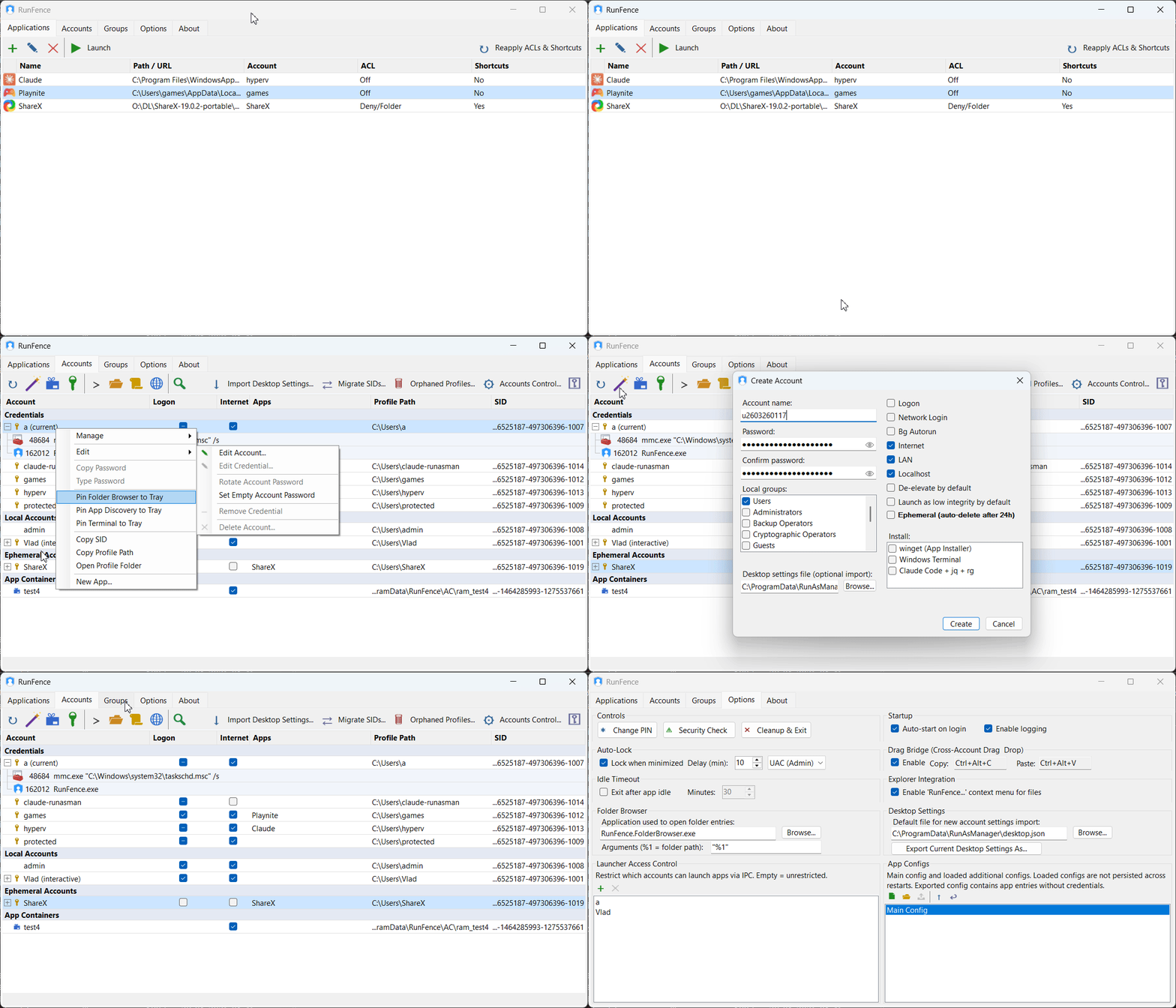
The GUI covers app isolation, account management, firewall controls, shortcuts, and safety checks — all without leaving your desktop.
Each app runs under a real Windows account, with the OS enforcing the boundary rather than a third-party interception layer.
Store the account once, then run the app without entering the password every time.
Store account passwords locally with DPAPI, AES-256-GCM, and Argon2id-based key derivation. No credentials leave the machine.
Block Internet, localhost, or LAN for the account running the app, and keep custom allowlist exclusions for destinations that still need access.
Detect risky write access to auto-run locations such as startup folders, registry run keys, services, scheduled tasks, and more.
Set deny or allow rules for folders, drives, and AppContainer SIDs. Clean up ACL entries automatically when accounts are deleted.
Launch isolated apps from the desktop, Start Menu, or any folder without opening the main window first.
Move files between windows owned by different accounts with a lightweight bridge and hotkeys.
Use AppContainer or low-integrity mode when the application can work within tighter restrictions.
Create a dedicated account, define the access it should have, and launch the app through RunFence. Future launches need no password.
Use a dedicated local Windows account for the app you want to contain.
Use the ACL manager to allow specific folders, shared data, or special app paths.
Run the app from RunFence while it handles the account credentials.
Use shortcuts, tray launch, Explorer context menu integration, and cross-user file transfer when you need them.
RunFence relies on Windows account isolation instead of a third-party layer that has to intercept behavior in the middle.
| Capability | RunFence | Driver-based sandbox |
|---|---|---|
| Kernel driver required | No | Yes |
| Interception layer | None | Bypass vectors exist |
| Performance | Native | Degraded |
| Enforcement model | Windows account boundaries | Third-party driver |
Download the release and set up the accounts you need for wallets, browser isolation, and tools like Claude Code.